Best Gaming Monitor Settings for Competitive Play - The Complete 2026 Guide
Refresh rate, response time, overdrive, black equalizer - here's how to set up your monitor for the smoothest, clearest competitive gaming experience.
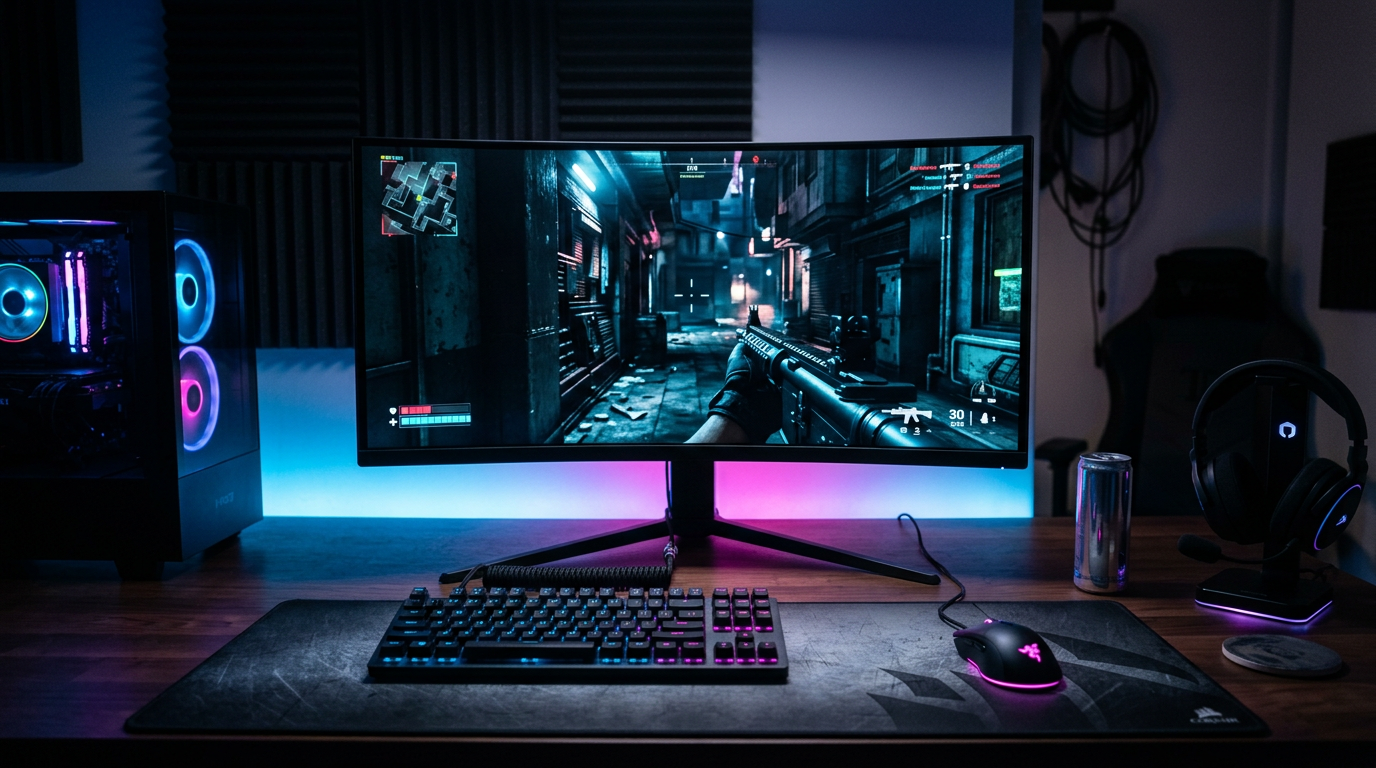
You can spend a fortune on a 240Hz or 360Hz monitor and still play on what is effectively a 60Hz screen. It happens far more often than you'd think — a cable that can't carry the bandwidth, a Windows setting nobody told you about, an overdrive mode that smears every enemy into a ghostly blur. The good news is that fixing it takes about ten minutes. This guide covers the settings that actually matter for competitive shooters and fast-paced games, in the order you should check them.
Step 1: Make Sure You're Actually Running Your Max Refresh Rate
This is the most common mistake by a wide margin. On Windows, open Settings, go to System, Display, Advanced display, and select the highest refresh rate available. If your monitor's advertised rate isn't listed, the problem is almost always the cable or port: use DisplayPort or an HDMI 2.1 cable plugged directly into your graphics card, not the motherboard's video output. On consoles, enable 120Hz output in the system video settings and confirm the game itself supports a 120 FPS or performance mode.
Step 2: Pick the Right Overdrive (Response Time) Mode
Overdrive pushes pixels to change color faster, reducing motion blur — but too much creates inverse ghosting, a bright halo trailing behind moving objects. Most monitors offer three to five levels. In practice the middle setting (often called Normal, Fast, or Level 2) is the sweet spot. Test it by watching a moving object test online or panning quickly in-game: pick the highest level that doesn't produce visible bright trails.
Step 3: Adaptive Sync - G-SYNC and FreeSync
Adaptive sync matches the monitor's refresh rate to your frame rate, eliminating screen tearing without the input lag of traditional V-Sync. Enable G-SYNC or FreeSync both in the monitor's on-screen menu and in your graphics driver. For the lowest latency, cap your frame rate a few frames below your refresh rate (for example 237 FPS on a 240Hz screen) so you stay inside the adaptive sync range.
Step 4: Picture Settings for Visibility
Competitive players care about spotting targets, not cinematic color accuracy. Many monitors include a Black Equalizer or Shadow Boost setting that brightens dark areas so enemies hiding in shadows stand out; a moderate value works best because extreme settings wash out the image. A slight bump in Digital Vibrance or saturation can also help character models pop against backgrounds. Turn off dynamic contrast, eco modes, and any motion smoothing — they add inconsistency and sometimes input lag.
Recommended Starting Settings
Every panel is different, but these values are a strong starting point for most modern IPS and fast VA gaming monitors.
- Refresh rate: maximum supported (verify in Windows display settings)
- Overdrive: medium / Normal / Fast
- Adaptive sync: ON, with an FPS cap 3 frames below refresh rate
- Black Equalizer / Shadow Boost: low to medium
- Brightness: 70-90% depending on room lighting
- Low Blue Light, Dynamic Contrast, Eco mode: OFF
- Picture mode: FPS or Standard, then fine-tune manually
Don't Forget In-Game Settings
Your monitor can only display frames your PC or console renders. In competitive titles, prioritize frame rate over visual detail: lower shadows, volumetric effects and post-processing first, since these cost the most performance and often make enemies harder to see. Enable low-latency modes such as NVIDIA Reflex or AMD Anti-Lag when available. A stable high frame rate will improve your aim far more than any single monitor tweak.
Frequently Asked Questions
Why is my 144Hz monitor only running at 60Hz?
Usually the refresh rate hasn't been changed in Windows display settings, or the cable or port can't carry enough bandwidth. Set the refresh rate manually and use DisplayPort or HDMI 2.1 connected to your graphics card.
Should I turn on G-SYNC or FreeSync for competitive games?
Yes. Adaptive sync removes screen tearing with very little latency. Pair it with a frame rate cap slightly below your monitor's refresh rate for the best results.
What overdrive setting is best?
The medium setting is best for most monitors. The highest setting often causes inverse ghosting, which shows up as bright trails behind moving objects.
Mike Rodriguez
Gaming journalist and content creator with a passion for helping players succeed.